Please note: The Online Check-in feature is currently in expansion and may not be available in all countries yet. If you cannot find your country or authority in the configuration options, this feature is not yet available for your property. We are actively working to add more regions—check back soon!
What is the Online Check-in feature?
The Online Check-in feature (also called Advanced Check-in) is an automated system that collects guest information and submits it directly to local authorities on your behalf. Instead of manually entering guest data into government portals, Holidu handles the entire process seamlessly—from sending guests a secure online form to automatically transferring their information to the relevant authority at check-in time.
Why do you need to do this?
In many countries—including Spain, Italy, Portugal, Germany, and others—hosts are legally required to collect guest information and submit it to local authorities shortly after check-in. This regulation supports security, traceability, and compliance with local laws. Not complying with these rules can result in penalties or fines. By using Holidu's Online Check-in feature, you maintain legal compliance with minimal effort.
How do you benefit from the automatic transfer?
The Online Check-in feature automates guest registration, delivering several key advantages:
- Legal compliance with minimal effort – No more manual data entry into government systems
- Automatic guest data transfer – Information is sent securely to the correct authority at the right time
- Digital guestbook – Download and access guest records anytime for inspections
- Built-in reminders – Automatic notifications keep guests on track
- Completely free – No additional cost for Holidu hosts
- Secure and privacy-compliant – Guest data is handled with the highest standards
How to set it up
Before activating the Online Check-in feature in Holidu, you must first register your accommodation with the relevant local authority. The feature is currently available in Spain, Portugal, and Germany, with Italy coming soon.
Use the table below to find your region and the authority you need to connect to:
| Region | Authority | Setup Guidelines |
|---|---|---|
| Spain (except Catalonia/Basque Country) | SES.Hospedajes | How to connect to SES.Hospedajes |
| Catalonia | Mossos d'Esquadra | Connect to Mossos |
| Basque Country | Ertzaintza | Connect to Ertzaintza |
| Portugal | SIBA | How to connect to SEF/SIBA |
| Germany | AVS | How to connect your property to AVS |
| Italy | Alloggiati Web | Guest Check-in Feature in Italy | Statistical Reporting in Italy |
Once you have registered with your local authority and obtained your credentials, follow this guide to set up the Online Check-in feature in your Holidu account.
What to do if your connection stops working
If your connection to the authority portal fails or stops working:
- Check that your authority credentials are still valid and have not expired
- Verify your internet connection is stable
- Log in to your authority portal directly to confirm your account is still active
- If credentials have changed or expired, update them immediately in your Holidu account settings under the "Account" section
- If the issue persists, contact Holidu support for assistance
How to connect Ricestat to your Chekin.io account
If you are using Ricestat or Chekin.io integrations alongside your Holidu Online Check-in feature, ensure that both systems are properly configured to avoid conflicts. For detailed instructions on integrating Ricestat with Chekin.io, please refer to your integration provider's documentation or contact Holidu support if you need clarification on compatibility.
Troubleshooting: Incorrect credentials for Ricestat
If you are experiencing authentication errors with Ricestat credentials:
- Verify that the username and password are entered correctly (check for extra spaces or capitalization)
- Confirm that your Ricestat account is active and not locked
- Reset your password in Ricestat if you are unsure
- Update the credentials in your Holidu settings
- Test the connection to ensure it works
If errors continue, reach out to Holidu support with details of the error message you are seeing.
How does it work for the guests?
Once you have set up the Online Check-in feature, here is what your guests will experience:
- Email invitation: After booking, your guest receives an email or in-app message with a secure link to the online check-in form
- Form completion: The guest fills out required details for all travellers, including document scanning (passport or ID). This must be done for each person in the party
- Secure submission: Guest data is encrypted and stored securely in the system
- Automatic reminders: If a guest does not complete the form, they receive automatic reminder messages. If they still do not comply, you can fill out the data on their behalf during check-in
- Automatic transfer: At 11:00 PM on the check-in day, all guest data is automatically submitted to the relevant authority
How to download the guest book?
Your digital guestbook can be downloaded anytime to keep records for inspections and compliance purposes:
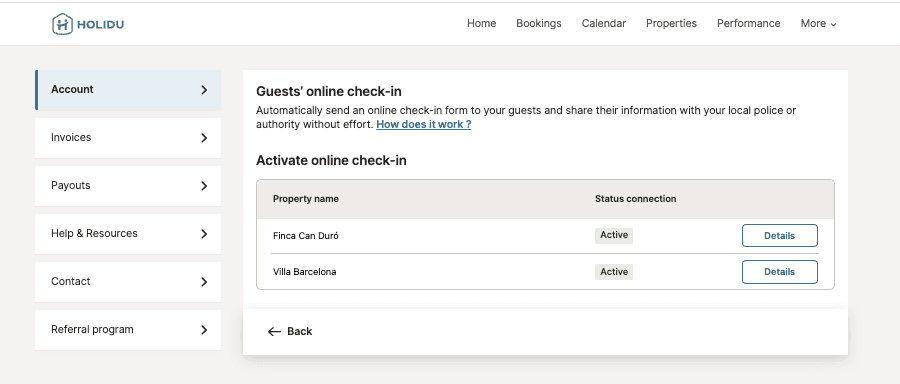
- Go to your Online Check-in settings
- Find the property for which you want to download the guestbook
- Click on the "Details" button next to the property

Frequently Asked Questions
Why does Holidu offer this feature?
Local law requires hosts to register all guests with local authorities. This tool automates the process, supports legal compliance, and saves you time and effort.
Which authorities can I connect to?
It depends on your region. You can connect to the specific authority for your country and region as listed in the setup table above. If your country is not listed, the feature is not yet available in your area.
Is registration with the authorities mandatory?
Yes. Guest registration is legally required in the regions where the Online Check-in feature is available.
Can I use this feature for all types of bookings?
Only bookings created through channels supported by Holidu are eligible. Manual bookings and iCal-based imports are not supported.
Can I send guest data from previous bookings?
No. The online check-in form is only triggered for future bookings. Bookings made before you enabled the Online Check-in feature are not covered by this automated system. You will need to register those guests manually in your authority's portal.
What guest data is collected and sent?
Personal details including name, date of birth, nationality, ID type, and ID number are collected. Only minimal required data is visible to you as the host (name and age). Full data is sent securely and directly to the authorities.
Will I have access to the guest data?
You will see only the guest's name and age, which is the required information for your guestbook. Additional information like ID numbers is not displayed to you and is sent securely only to the authorities.
What happens if guests provide their information and then cancel the booking?
If a guest cancels their booking after providing their information, that data will not be sent to the authorities.
Will I receive a notification when guests provide their data?
We do not send automatic notifications. However, you can view the status of each booking to see whether guests have provided their data.
Do children need to be registered?
Yes. All guests must be registered regardless of age. For Spanish minors under 14, ID and signature are not required, but the responsible adult's relationship to the child must be recorded.
What happens if guests don't complete the form?
Guests will receive an automatic reminder 5 days before arrival. If the form remains incomplete, you have two options:
- Manually fill out the form in the presence of the guest
- Resend the check-in link to the guest
Data must be submitted before 11:00 PM on the check-in day to benefit from automatic submission to the authority.
Can I fill out the form for my guests?
Yes. You can fill out the online check-in form directly from the booking details screen in your Holidu account. You can scan guest IDs or enter data manually during check-in.
Can I modify data after submission?
No. Once data has been sent to the authority, it cannot be edited through Holidu. If there is an error, you will need to contact Holidu support or manually correct the data in your authority's portal directly.
When is the data sent to the authority?
Guest data is automatically sent at 11:00 PM on the check-in day. As the host, you are responsible for ensuring all guest data is complete before this deadline.
Do collaborators have access to this feature?
No. Only primary account holders with editor rights can configure and manage the Online Check-in connections. Collaborators can view the check-in form in booking details but cannot activate or manage the feature.
What happens if my authority credentials change or expire?
You must manually update your credentials in Holidu immediately. Expired passwords may cause data transfer to fail. Always verify your connection status in the "Account" section of your Holidu dashboard.
Is the guestbook legally required?
Yes. The guestbook acts as your digital log for police checks and inspections. You must retain these records for 3 years, as per local regulations such as Spain's Real Decreto 933/2021.
Does this work for multi-unit properties?
Yes. The configuration process works exactly like the existing setup. Multi-unit hosts can configure the Online Check-in feature for each property separately, allowing customized management for each location.
Do you want to contact us?
We’re here to help. You can contact us directly if you need assistance or have questions.
Contact us