Already have a domain you want to use? You can connect it to your Holidu booking website to drive more direct bookings under your own brand.
Before you start, make sure you have access to your domain provider's settings (e.g. AWS, Vercel, etc.). A quick heads-up: if you already have a website live on that domain, it will be replaced by your direct booking website once this process is complete.
Step-by-step guide to connecting your domain
Step 1: Start the process in the Holidu app by setting up your booking website
- Click Enable website if it is not enabled yet.
- Click Connect my domain.

- After you start the setup and enter your existing domain name, a DNS tab appears.
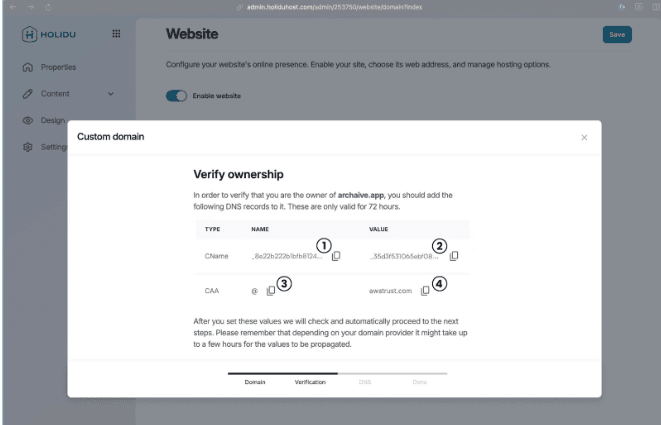
Holidu generates a few specific DNS values for you here. Copy these values and add them to your domain provider's settings in the next step.
Tip: Don't worry if you're not familiar with DNS settings — we will guide you through it in Step 2.
Step 2: Create a new CNAME in your domain settings
Log in with your domain provider and look for an option to create a new record (or DNS record). A form will open.
- For Type, select CNAME.
- In the Holidu app, copy the "NAME" value from the CName line (1) and paste it into the name field of the record you want to create.
- Then copy the "VALUE" from the same line (2) and add it to the value field of the record you want to create.
- The "TTL" and "Routing policy" fields can usually keep their pre-filled values.
After making those settings, create the record.
Example (AWS):
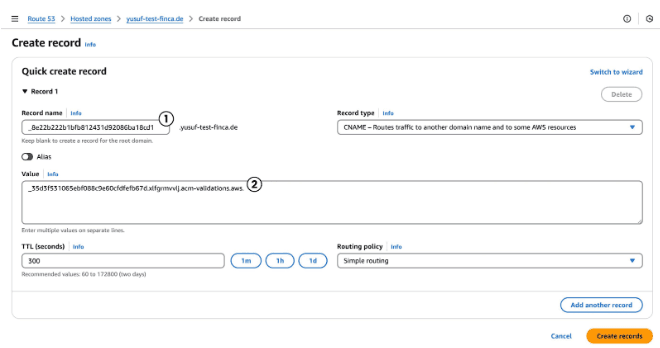
Important: If there are already records saved for the domain you want to use, please delete those first.
This will disconnect your existing website from the domain, so it will not be accessible to guests anymore. This step is needed so you can connect the domain to your new direct booking website.
Step 3: Add a CAA DNS record in your domain settings
Create another record in your domain settings. This time:
- For Type, select CAA.
- In the Holidu app, copy the "NAME" value from the CAA line (3) and copy it into the name field of the record you want to create.
- In the value field, paste the value you get from the Holidu app (4).
- Some providers might require a special format for the value field, for example 0 issue "awstrust.com". In this case, add the value (4) from above in quotation marks.
- The "TTL" and "Routing policy" fields can usually keep their pre-filled values.
After making those settings, create the record.
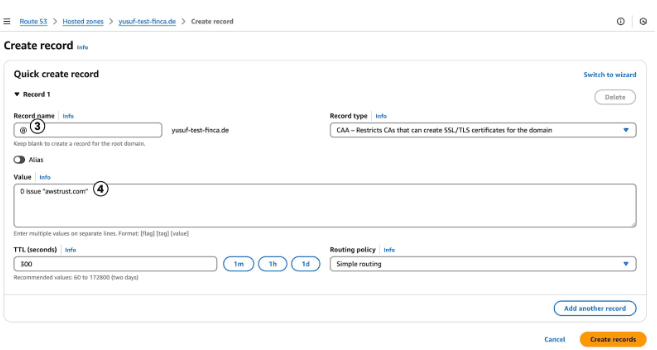
Step 4: Head back to the Holidu app to check that the records are recognized
With the records you just added in place, Holidu automatically checks the DNS settings. This usually takes around 5 minutes.
If everything looks good, your domain is verified and you are guided to the final step of the setup.
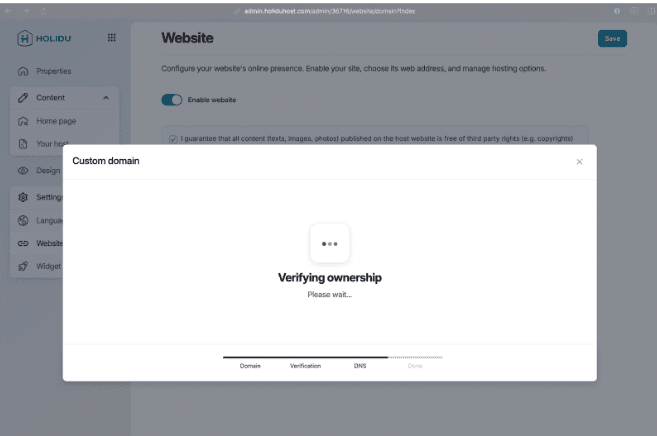
Step 5: Add an ALIAS DNS record in your domain settings
Once Holidu has verified your domain, there is just one more DNS record to add. Holidu provides the following values:
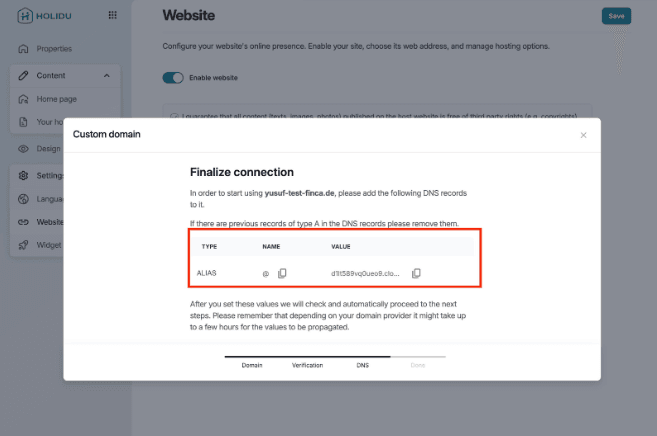
Create a new record and change the Type to ALIAS this time.
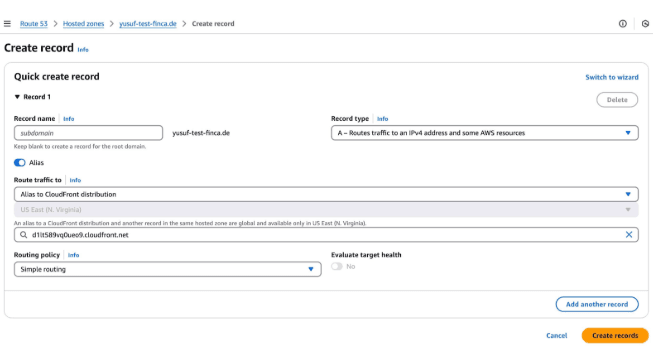
Before moving on, make sure your domain provider settings now include all three of the following records:
- ALIAS
- CAA
- CNAME
All three are needed for your direct booking website to connect properly.
Step 6: Final verification
Head back to the admin UI and wait until the domain is verified.
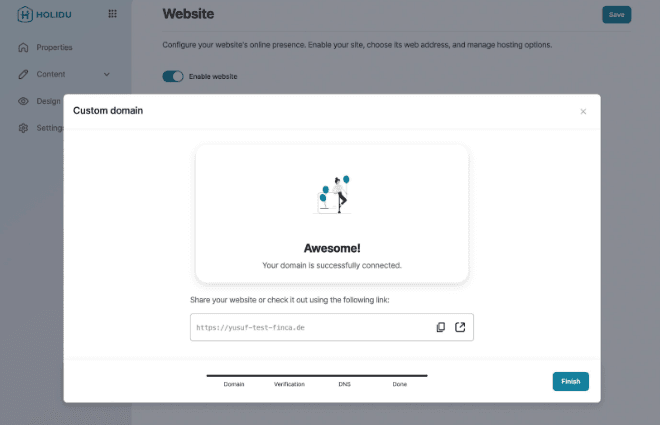
You can now access your direct booking website via your own domain.
Troubleshooting and next steps
If your domain is not verifying after 5 minutes, double-check that all three DNS records (ALIAS, CAA, and CNAME) have been created correctly in your domain provider settings. Ensure that the values you copied from the Holidu app match exactly what you entered in your domain settings. Sometimes DNS changes can take up to 48 hours to propagate fully across the internet, so if verification still fails, wait a bit longer and try again.
Once your domain is successfully connected, your booking website will be live under your own domain, helping you build brand recognition and encouraging direct bookings from your guests.
Do you want to contact us?
We’re here to help. You can contact us directly if you need assistance or have questions.
Contact us